
HTML <area> tag
The <area> tag is used to define an area within an image generally associated with a hypertext link.
This element must be used within the <map> element only.
In order to make link to the <area> element, the value (preceding with "#") of the usemap attribute of the <img> tag must match the name attribute of the <map> element.
Type: Inline Element
Although <area> tag is an inline element, it does not render anything visible by itself.
Example of <area> tag
<img src="map.png" height="200" width="300" alt="area-tag-demo" usemap="#demo">
  <map name="demo">
    <area shape="rect" coords="20,40,120,120" href="#" target="_blank" alt="rectangle">
    <area shape="circle" coords="220,90,40" href="#" target="_blank" alt="Circle">
  </map>
Output on the browser
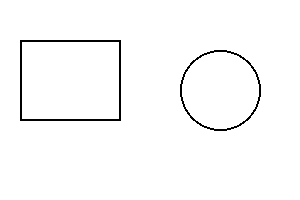
When you click to the black border rectangle, the page will redirect to a webpage which is written using href attribute.
Providing the value "#" means the page will redirect to the page itself. Coordinates are calculated from the top-left corner of the image (0,0).
Supported Browsers
| Tag | Chrome | Internet Explorer | Firefox | Safari | Opera Mini |
|---|---|---|---|---|---|
| <area> | Yes | Yes | Yes | Yes | Yes |
All attributes of <area> tag
| Attributes | Values | Notes |
|---|---|---|
| alt | text | It specifies an alternate texts for an area if the image could not load due to some reasons like low data speed, wrong URL etc. |
| coords | coordinates | It is used to specify the coordinates of an area or multiple areas inside the <map> element. |
| download | filename | It allows the users to download the file of the target URL when click on it. |
| href | URL | It specifies the hyperlink target for the area. |
| hreflang | language code | It specifies the language of the linked resource. |
| media | media query | It defines a hint regarding the media type for which the linked resource was designed. |
| nohref | value | It indicates that no hyperlink exists in the associated <area> element. |
| rel | alternate author bookmark help license next nofollow noreferrer prefetch prev search tag |
It defines the relationship between the current document and the target resource. |
| shape | auto default rect circle poly |
It specifies the shape of the associated <area> element. |
| target | _self _blank _parent _top |
It specifies where to display the linked resources. |
| type | media type | It specifies the media type of the target URL. |
1. alt Attribute
The alt The coords attribute is used to specify the coordinates of an area or multiple areas in an image-map. It is used with the shape attribute to specify the shape and placement of the area to be spotted.
Syntax
<area alt="text">
Supported Browsers
| Attribute | Chrome | Internet Explorer | Firefox | Safari | Opera Mini |
|---|---|---|---|---|---|
| alt | Yes | Yes | Yes | Yes | Yes |
2. coords Attribute
The coords attribute is used to define the coordinates of an area or multiple areas inside the <map> element. It is used with the shape attribute to specify the shape and placement of the area to be spotted.
Syntax
<area coords="coordinates">
Supported Browsers
| Attribute | Chrome | Internet Explorer | Firefox | Safari | Opera Mini |
|---|---|---|---|---|---|
| coords | Yes | Yes | Yes | Yes | Yes |
Attribute values of coordinates
a) For Rectangle
| Value | For | Note |
|---|---|---|
| x1
y1 x2 y2 |
rectangle | x1,y1 defines the coordinates of the top-left corner and x2,y2 defines the right-bottom corner of a rectangle. |
The below image has a resolution size of 360x240px. There is a green border reactangle inside it having width of 180px and height of 100px. After using scale, the exact values are x1 = 80, y1 = 60, x2 = 260, y2 = 160.
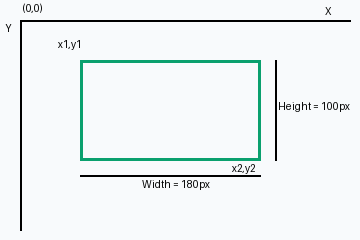
Coordinates are calculated from the top-left corner. The top left corner is (0,0). The value of x increases to the right while the value of y increases downward.
If we want to add link only inside the green-border rectangle (not on the whole image), we should define the coordinates inside the <map> element in the following way.
<img src="demo-reactangle.png"
 height="240"
 width="360"
 alt="rect area"
 usemap="#demo">
  <map name="demo">
    <area shape="rect"
    coords="80,60,260,160"
    href="#">
  </map>
b) For circle
| Value | For | Note |
|---|---|---|
| (x,y)
r |
circle | (x,y) defines the coordinates of the center of the circle and r defines the radius. |
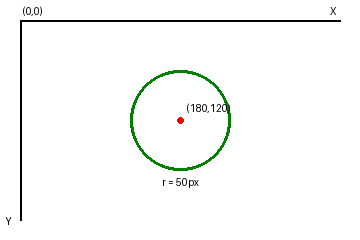
The above image has also the resolution of 360x240px. In order to add link only within the area of the circle, we should define the coordinates inside the <map> element in the following way.
<img src="demo-circle.png"
 height="240"
 width="360"
 alt="area circle"
 usemap="#demo">
  <map name="demo">
    <area shape="circle"
    coords="180,120,50"
    href="#">
    alt="area circle">
  </map>
c) For polygon
| Value | For | Note |
|---|---|---|
| x1, y1 x2, y2 x3, y3 ..xn, yn | polygon | (x1,y1) defines the coordinates of the initial edges of the polygon and so on, to outline the entire shape |
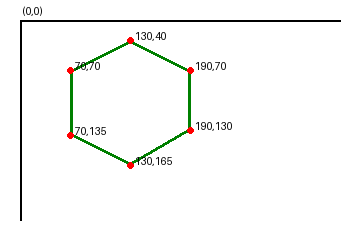
Inorder to specify the above hexagon from the image, we have to specify the coordinates in the following way.
<area shape="poly"
 coords="70,70,130,40,190,70,190,130,130,165,70,135"
 href="#">
alt="hexagon">