
HTML <map> tag
The <map> tag is used to define an image map. It allows different clickable link areas within a single image.
Type: Inline Element
Although <map> tag is an inline element, it does not render anything visible by itself.
Example of <map> tag
<img src="map.png" height="200" width="300" alt="area-tag-demo" usemap="#demo">
  <map name="demo">
    <area shape="rect" coords="20,40,120,120" href="#" target="_blank" alt="rectangle">
    <area shape="circle" coords="220,90,40" href="#" target="_blank" alt="Circle">
  </map>
Full code example
<!DOCTYPE html>
<html>
<head>
</head>
<body>
<img src="map.png" height="200" width="300" alt="area-tag-demo" usemap="#demo">
  <map name="demo">
    <area shape="rect" coords="20,40,120,120" href="#" target="_blank" alt="rectangle">
    <area shape="circle" coords="220,90,40" href="#" target="_blank" alt="Circle">
  </map>
</body>
</html>
Output on the browser
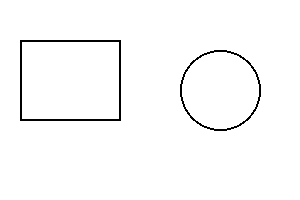
When you click to the black border rectangle, the page will redirect to a webpage which is written using href attribute.
Providing the value "#" means the page will redirect to the page itself. Coordinates are calculated from the top-left corner of the image (0,0).
Supported Browsers
| Tag | Chrome | Internet Explorer | Firefox | Safari | Opera Mini |
|---|---|---|---|---|---|
| <map> | Yes | Yes | Yes | Yes | Yes |
Attribute of <map> tag
| Attribute | Value | Note |
|---|---|---|
| name | mapname | It assigns a name to an image-map. |
More reference
With <map> element, you can assign multiple links inside a single image. It is linked with the <img> element by assigning a custom map-name.
In order to make link to the <area> element, the value (preceding with "#") of the usemap attribute of the <img> tag must match the name attribute of the <map> element.
Default CSS property of <map> tag
map {
  display: inline;
}